Support and Tickets
NGC provides support according to the terms and conditions defined in the Service Level Agreement. You can use the Support & Ticket section to create, track, and manage your tickets. You can raise tickets for incidents, service requests, or change requests and communicate directly with the assigned support agent.
To access the Support & Tickets menu, click the user icon and navigate to Account Centre > Account.
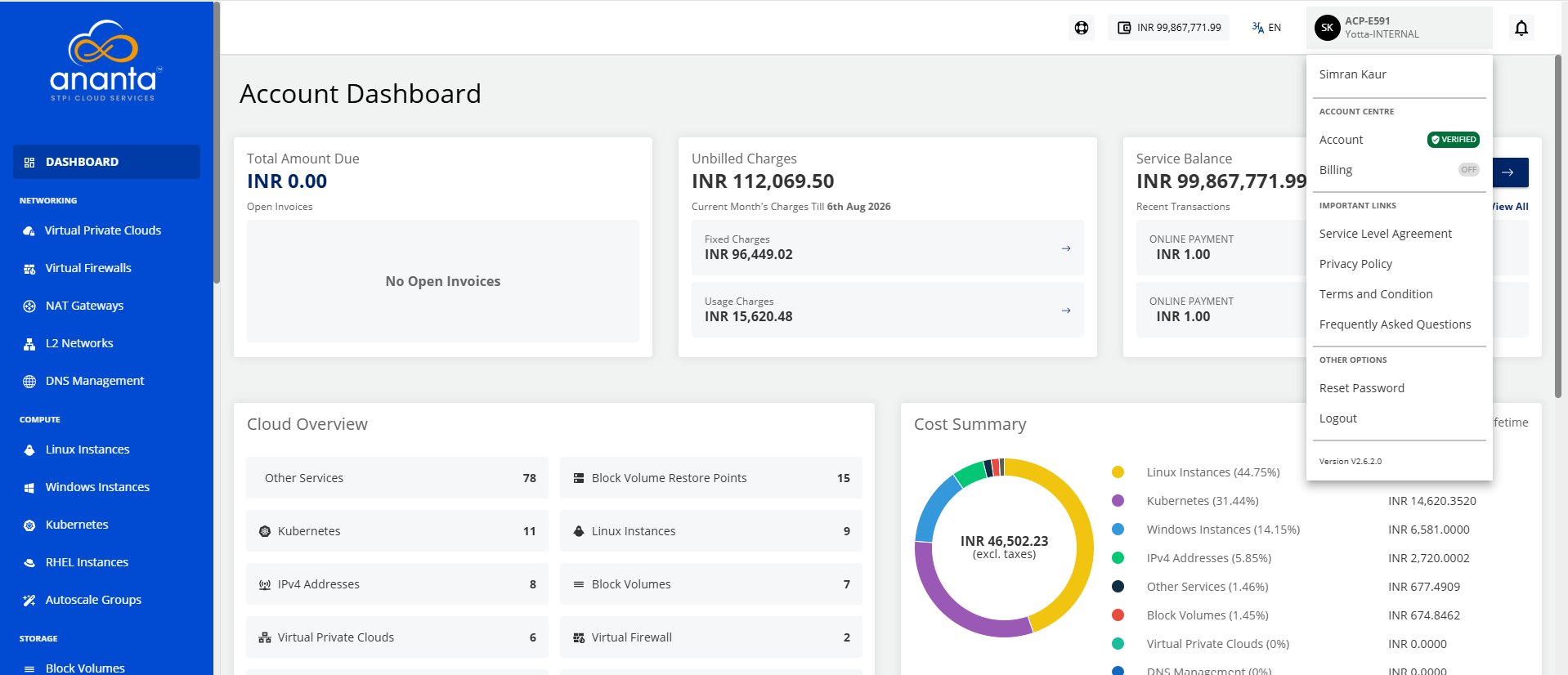 The following screen appears:
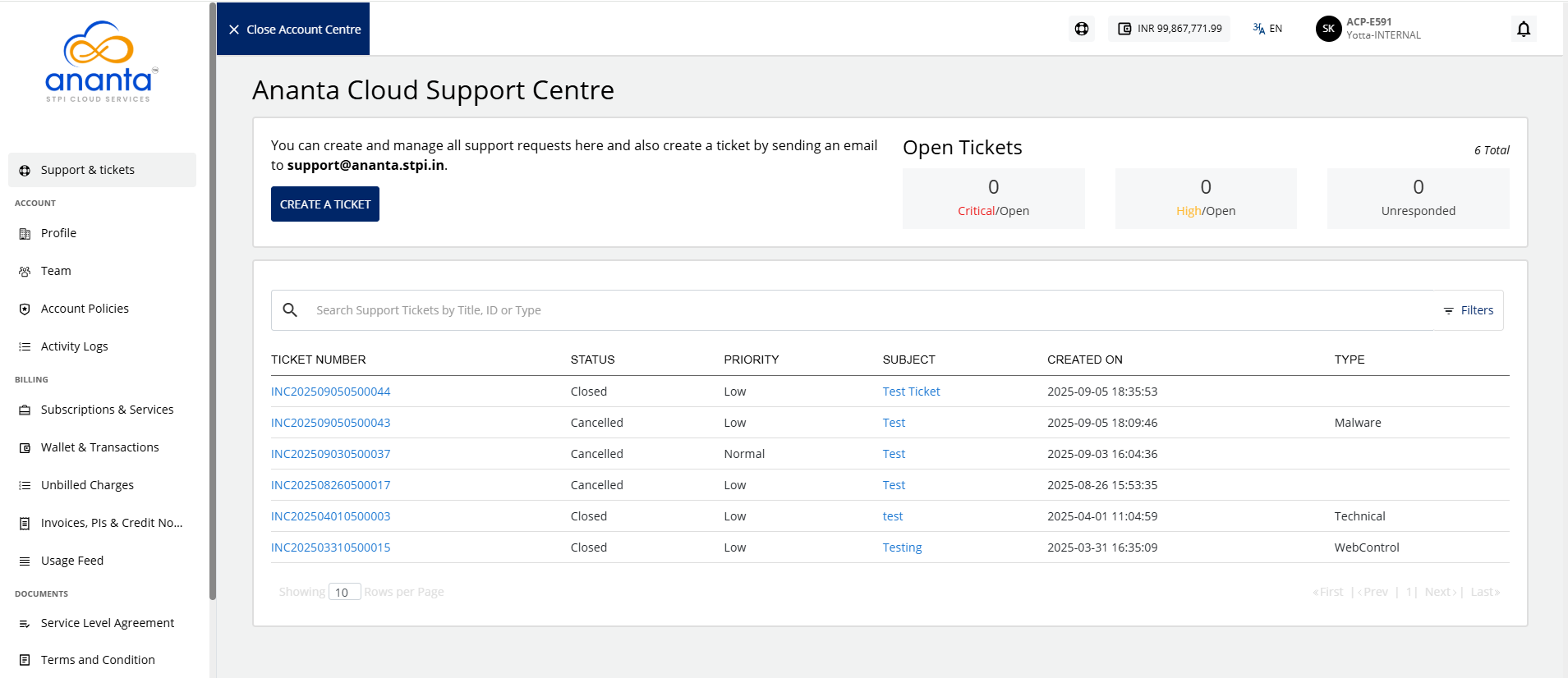
Creating a Support Ticket
To create a support ticket, follow these steps:
- Click the Support & Tickets menu. The following screen appears:
- Click the Create a Ticket button. The following screen appears:
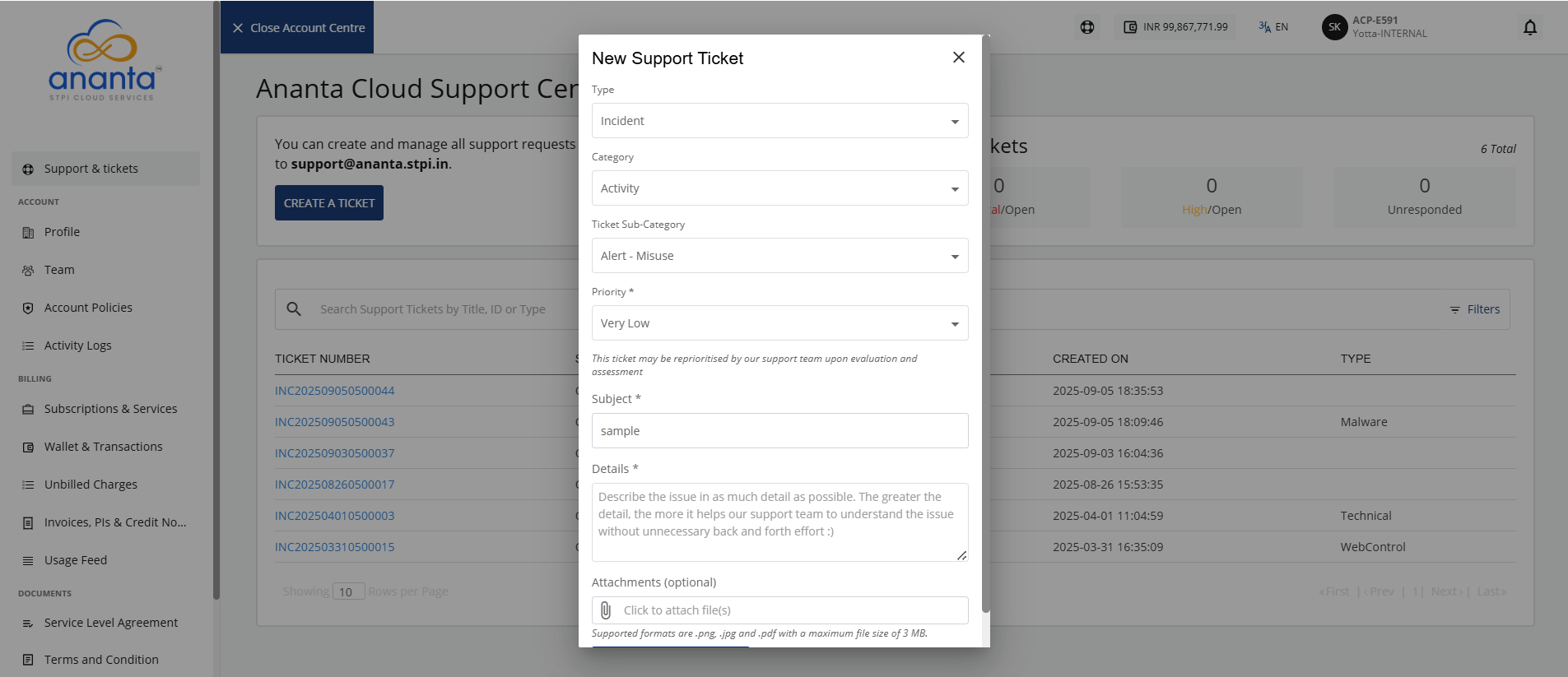
- Provide the following details:
- Type: Select the appropriate high-level classification, such as Incident, Service Request, or Change Request. Click here to view the categories and sub-categories.
- Category: Select the appropriate category (For example: Accounts, Antivirus, Apache SQL Injection Attack, Backup) based on the ticket type.
- Ticket Sub Category: Select the appropriate subcategory according to the selected category.
- Priority: Select the appropriate priority level (Very Low, Low, Normal, High) based on the impact and urgency of the ticket.
- Subject: Enter a clear and descriptive ticket subject.
- Details: Enter the complete ticket description.
- Attachment: Optionally, attach a .png, .jpg, or .pdf file. Ensure that the file size does not exceed 5 MB.
- Click the Create Support Ticket button.
After successfully creating the ticket, you get a notification email and a separate email containing the ticket details on your registered email id. You can use the ticket information to track the request and communicate with the support agent(s).
Communicating with an Agent
To communicate with an agent, follow these steps:
- Click Ticket Number (highlighted in red).
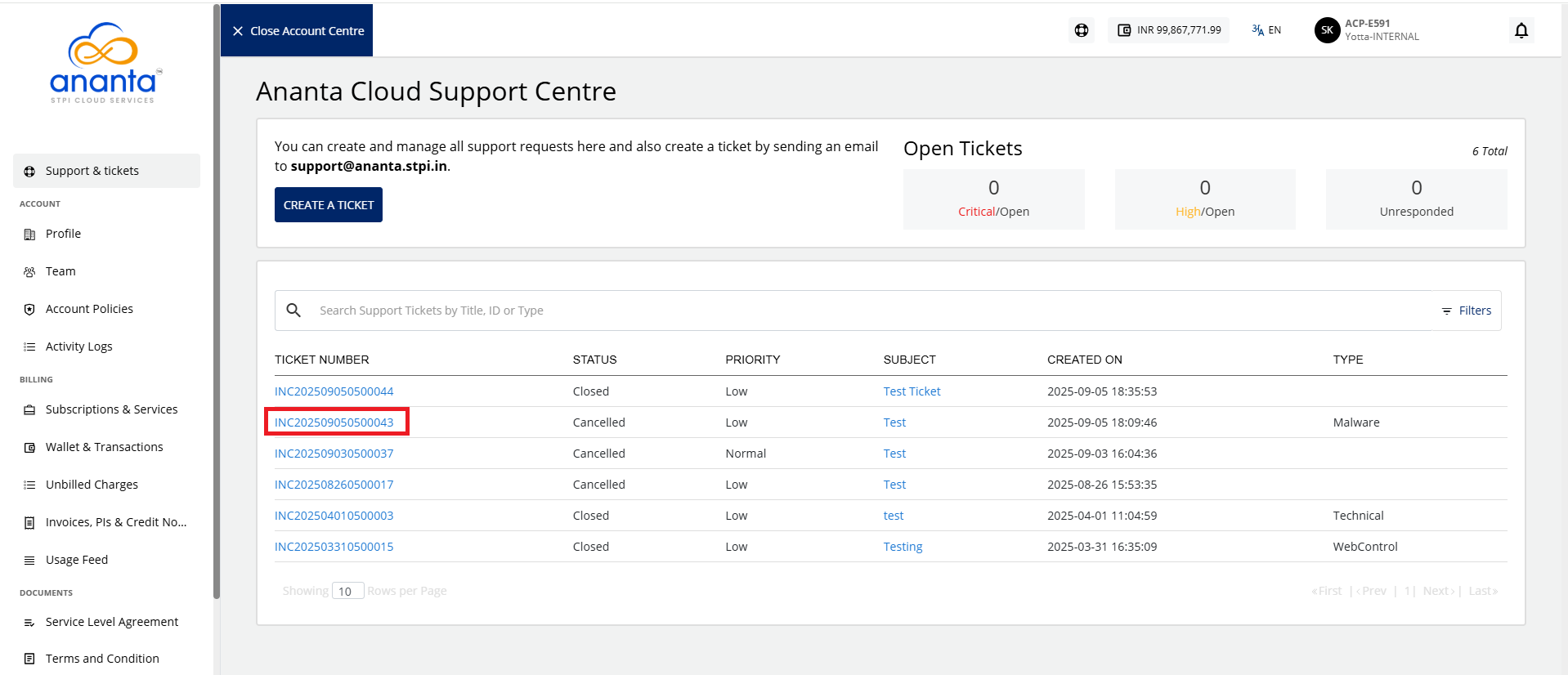 The following screen appears: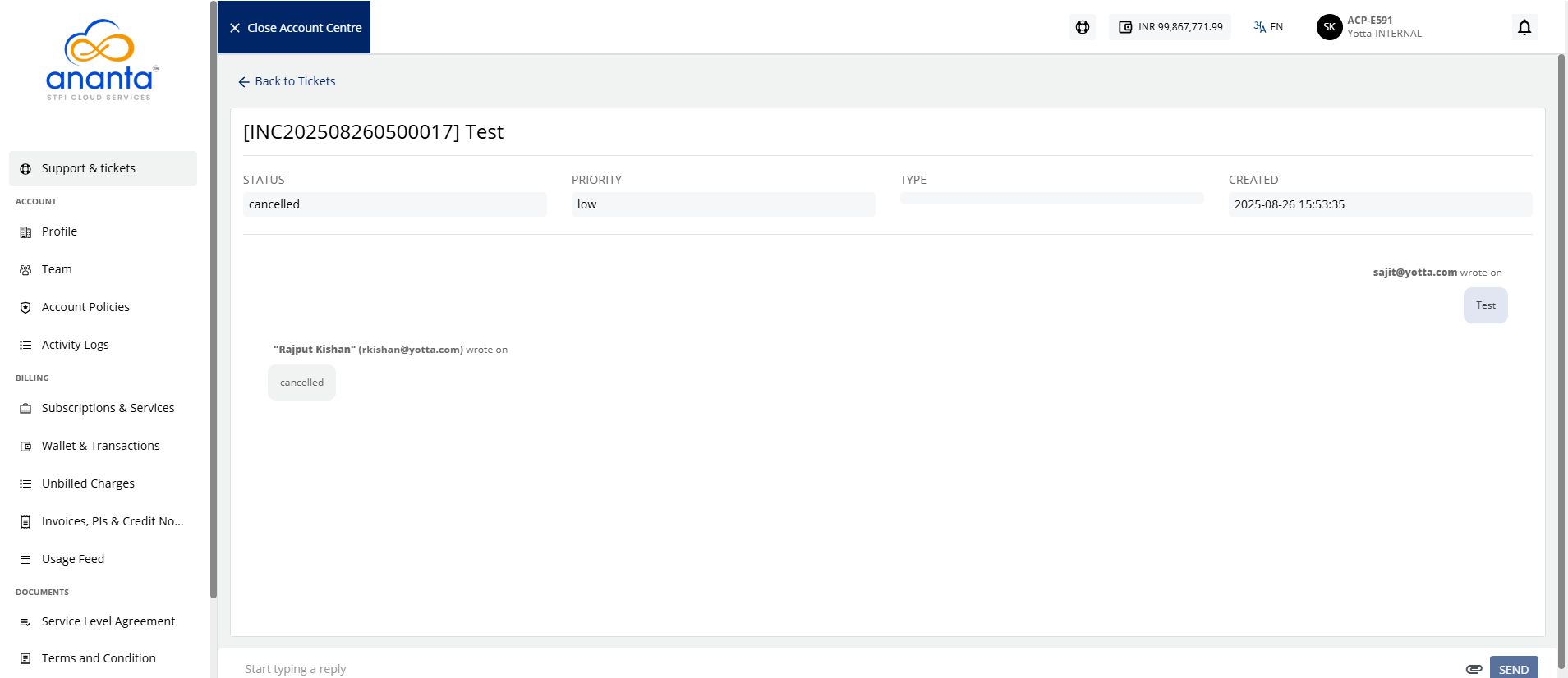
- Enter your message in the textbox. You can also upload attachments along with your message.
- Click Send.
You can also reply directly to the email containing the ticket information or the latest response from the support agent.
Ticket Classifiers
The following table is a quick reference on ticket classifiers:
| Category | Sub Category |
|---|---|
| Activity | Alert -misue |
| New Requirement | |
| AIX | Alert- Profiled |
| New Requirement | |
| AppSecure | Availability |
| Backup/Restore/Recover/ | |
| BAU Activity | |
| Capacity | |
| Audit | Application |
| Database | |
| Network | |
| New Requirement |