Connecting to a Linux Instance
You can connect to Linux Instances via SSH sessions using passwords (less secure) or SSH key pairs (most secure)
Connect from a Windows Machine
To connect to your Linux Instance from a Windows machine, you will need to use a small application called PuTTy, an SSH client.
- Download and install PuTTy.
- Launch PuTTy on your computer.
- In the Host Name (or IP Address) field, enter your Instance’s IP address.
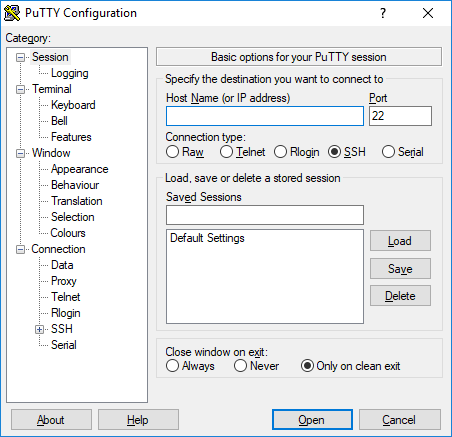
- Navigate to Connection > SSH > Auth.
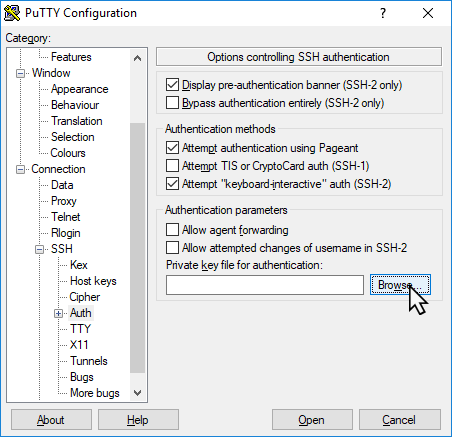
- Click the Browse button and select the previously generated private key file.
- To open a connection to the instance, click Open at the bottom of the screen. PuTTY will prompt you to allow the connection to the host.
- Click OK to confirm, and the terminal window will appear.
- Enter the default root username (typically ubuntu for Ubuntu images and root for other Linux OS images) and press Enter to authenticate using your SSH key.
You are now connected to your Instance.
Connect from a macOS or Linux Machine
- Open any terminal program.
- Enter the following command into the terminal.
important
Make sure you replace
<your_private_key>with the filename of your private key;<your_instance_ip>with the IP address of your Instance; and<username>with the default root user name (typically ubuntu for Ubuntu images and root for all other Linux OS images).ssh -i ~/.ssh/<your_private_key> <username>@<your_instance_ip> - If/when prompted, allow connection to the host by typing yes, then press Enter.
The authenticity of host 'myhost.ext (212.47.206.34)' can't be established.
RSA key fingerprint is 4f:ba:65:cf:14:64:a7:1e:b6:07:7c:00:71:95:21:fa.
Are you sure you want to continue connecting (yes/no)?

You are now connected to your Instance.