Creating VPC Subnets/Tiers
VPCs follow the convention of 3-tiered network architecture, with web, app, and DB tiers forming the norm. You can, however, configure these tiers to suit your application architecture or just follow the common convention.
Subnet and Tiers
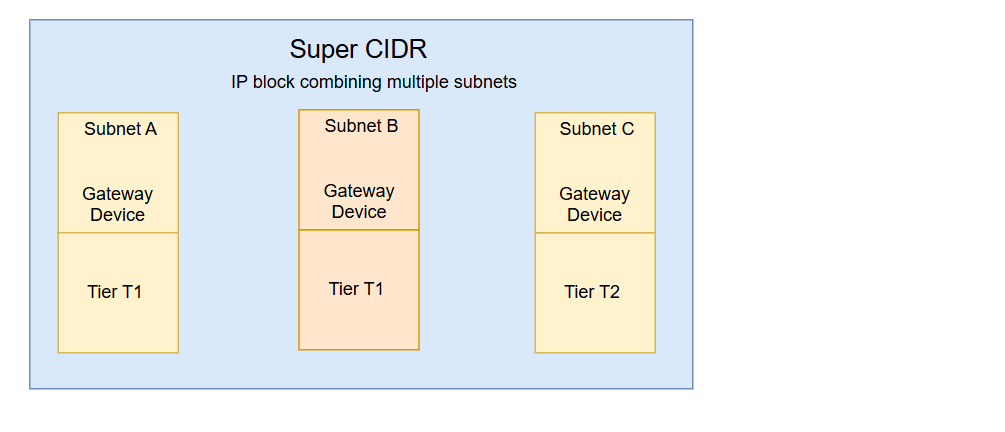
In a VPC, subnets define IP-based network segments, and tiers represent logical layers of your application architecture. You can design networking tiers within this VPC based on the overall network size and the allocated Super CIDR range.
To add a tier to your VPC, navigate to the VPC, select the Subnets and Tiers section. The following details are displayed:
- Name of the tier.
- GatewayA gateway for a subnet in a VPC is a device that routes traffic between the subnet and external networks, allowing internet access.for the subnet.
- NetmaskA netmask defines the number of IP addresses available in a subnet or tier within a VPC.for the tier/subnet.
- Tier CIDRIt is the IP address range assigned to a particular application tier within a VPC. for this tier.
- Tier IPv6 Gateway of this tier.
- Tier IPv6 CIDR of this tier.
- Access Control of this tier.
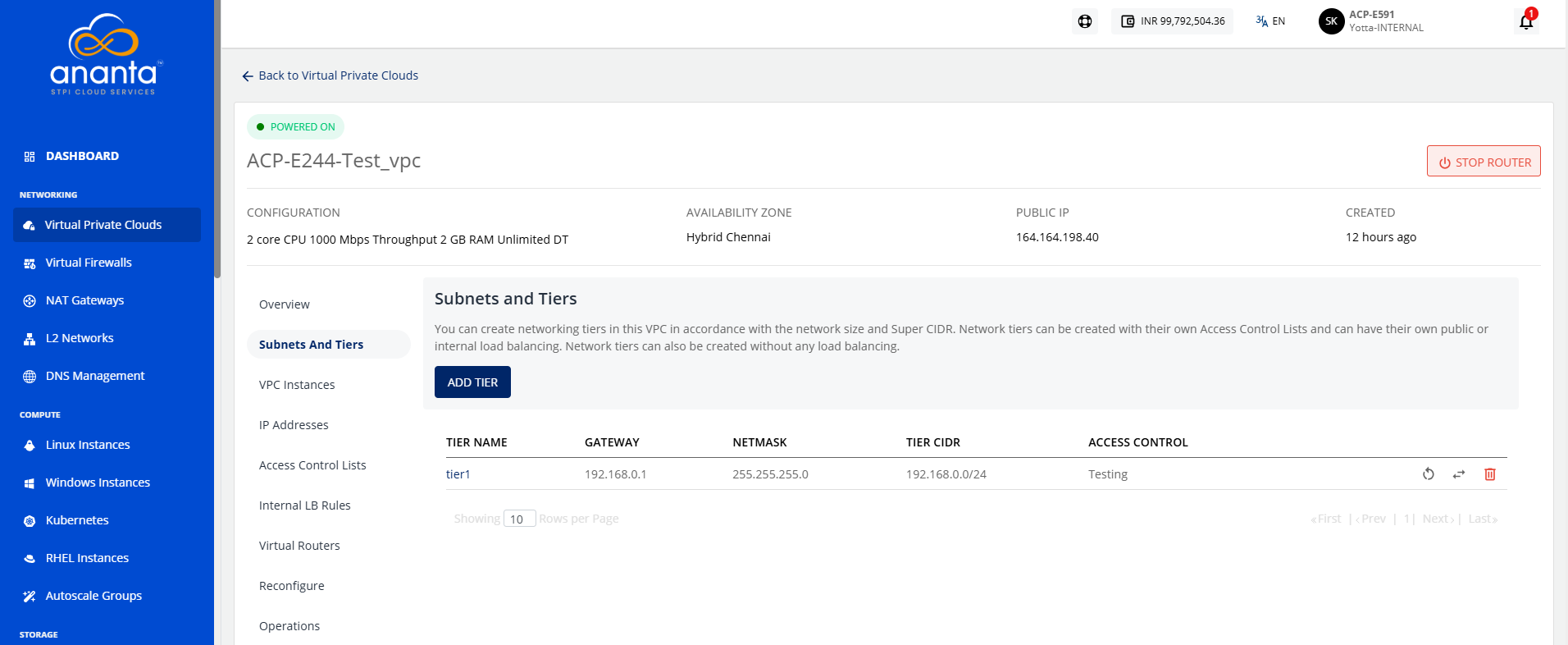
There are three icons available on the right side for quick actions:
- Restarting the network
- Replacing the access control list
- Deleting the tier
Adding a Tier
To add a tier, follow these steps:
- Click the Add Tier button.
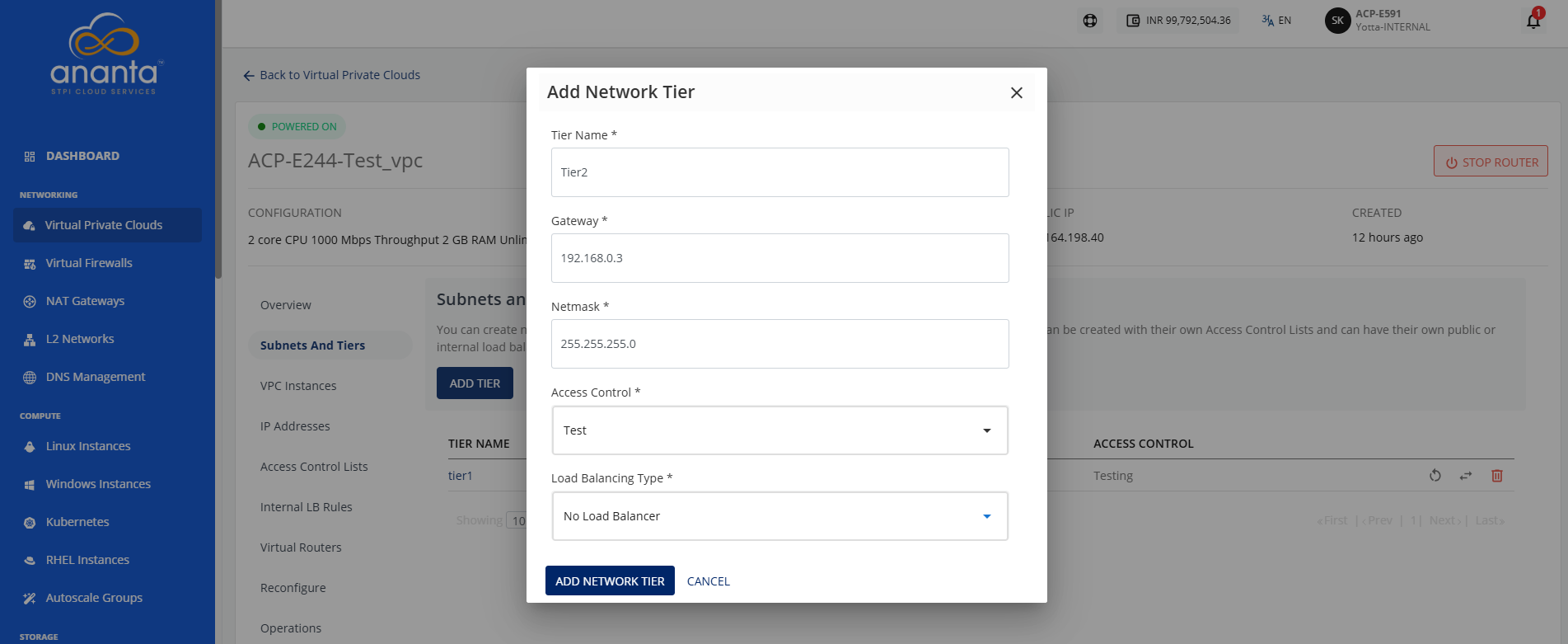
- Enter the following details:
- Tier Name: Name of the network tier you are creating.
- Gateway: IP address for the gateway of the tier.
- Netmask: Subnet mask defining the IP range.
- Access Control: Choose rules for network traffic control.
- Load Balancing Type: Select the load balancing type (Internal load balancer, Public load balancer, No load balancer)
- Click the Add Network Tier button.
You can attach the network tier to the instance as a Network Interface Card (NIC).
Replacing an ACL
To replace an ACL, follow these steps:
- Click the Replace Access Control List (highlighted in red) icon.
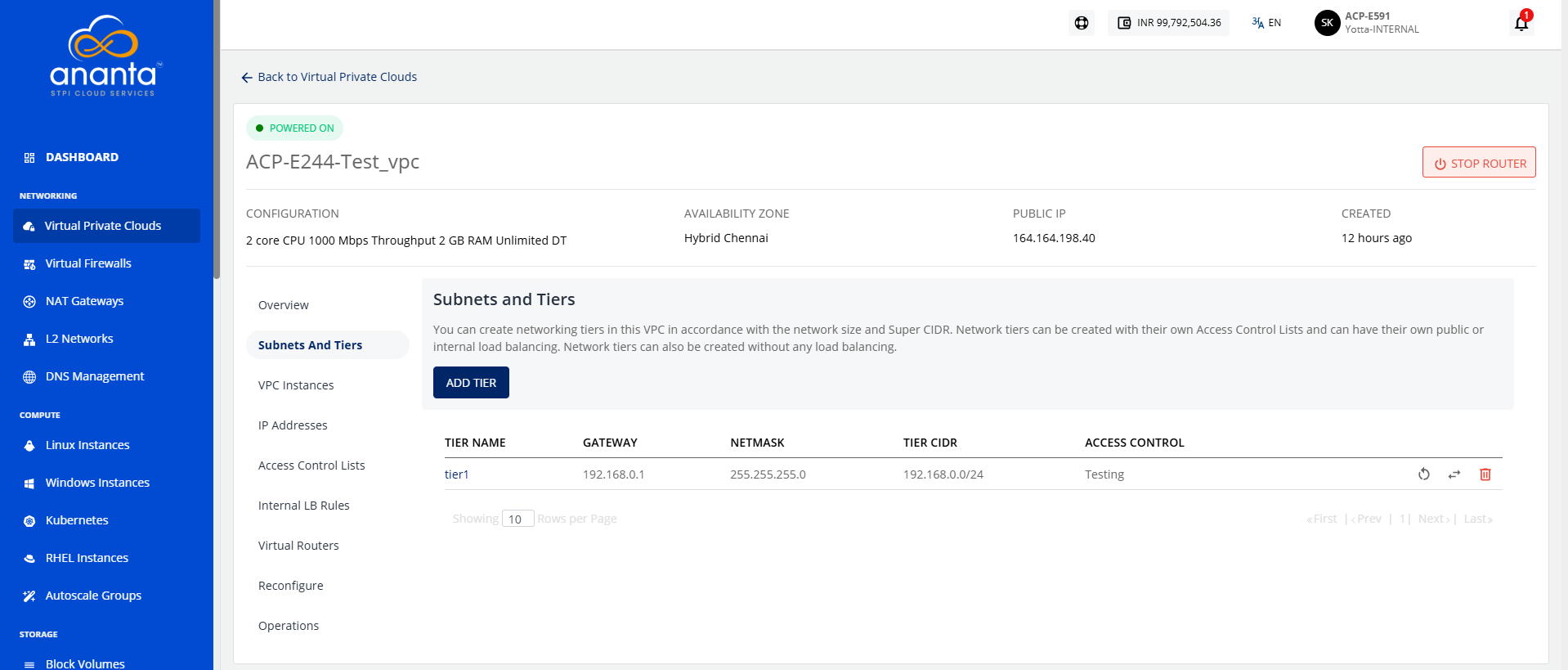 The following screen appears: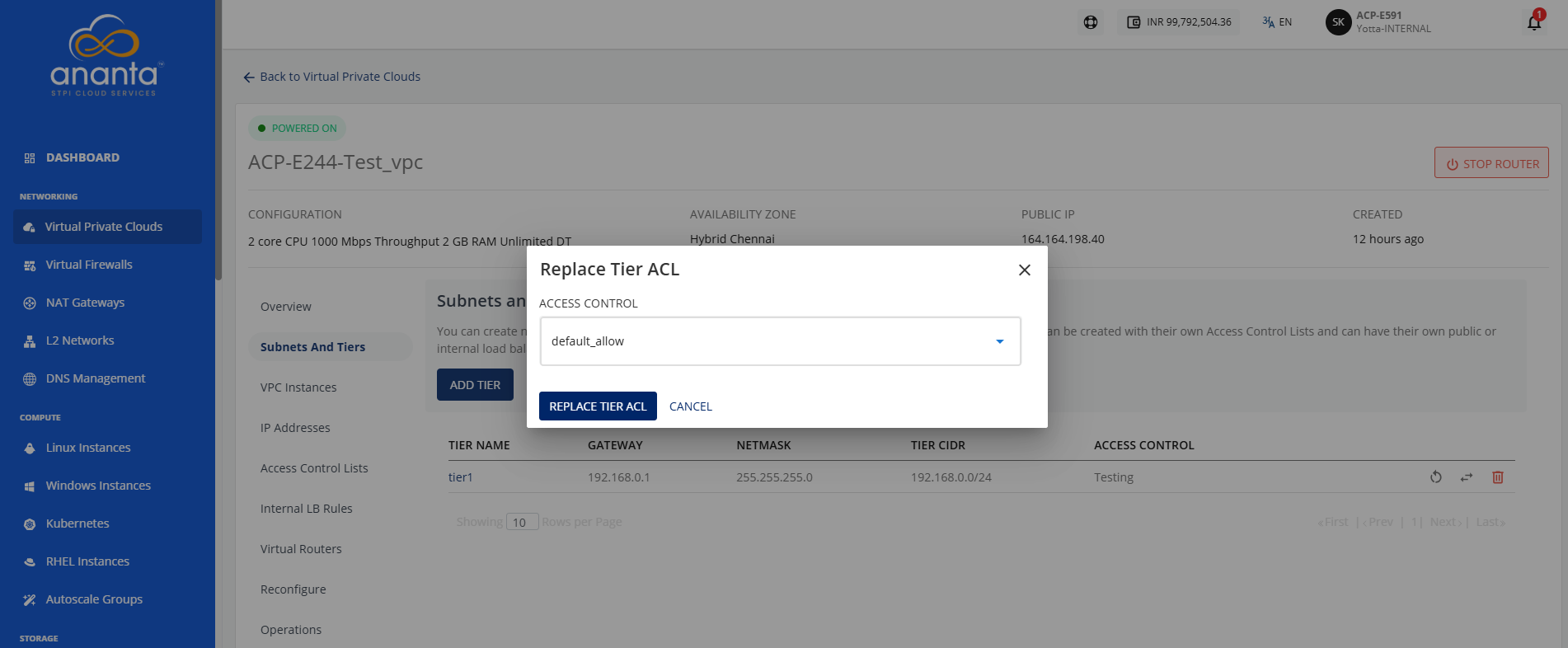
- Select a different ACL from the dropdown list.
- Click the Replace Tier ACL button.
The tier is attached with selected ACL.