Internal LB Rule
An internal Load Balancer (LB) is a type of load balancer that routes traffic to workloads within a virtual private network.
Creating a New Internal LB Rule
To create a new Internal LB Rule, follow these steps:
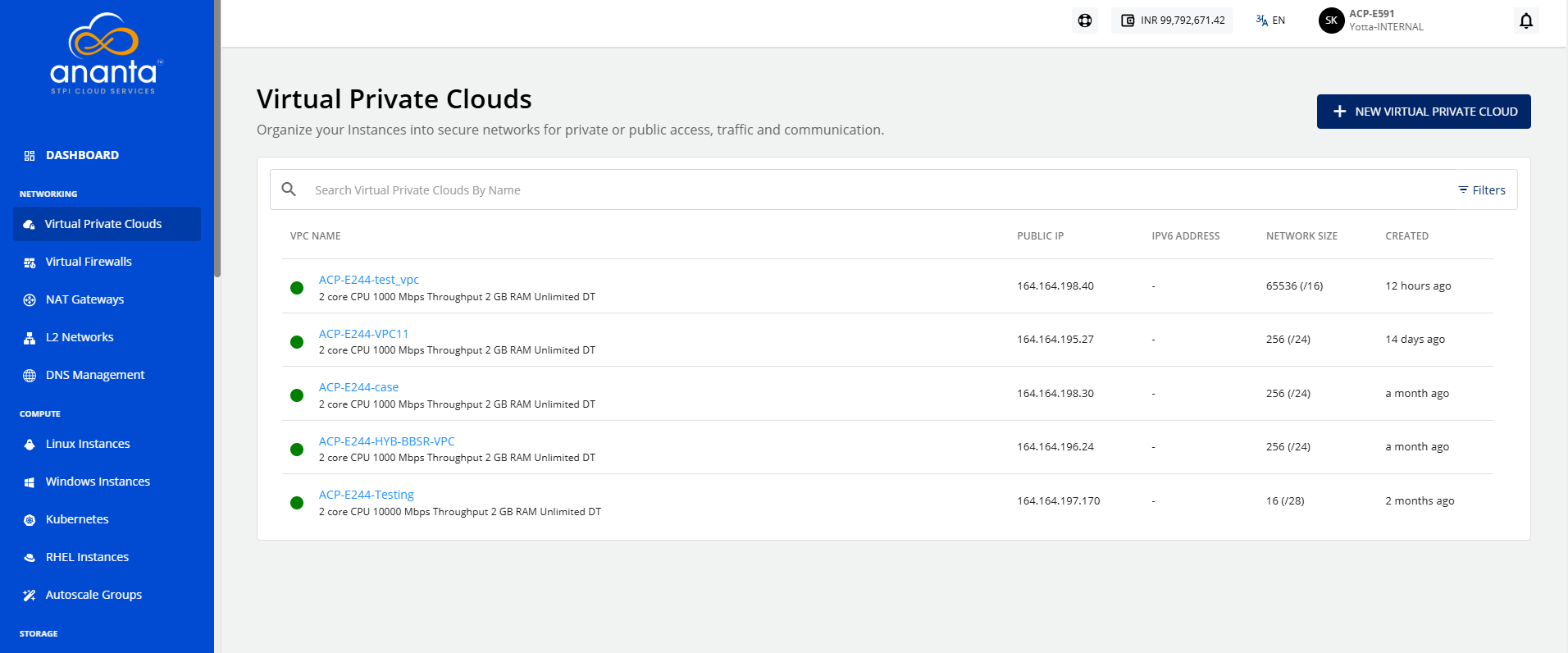
- Navigate to Networking > Virtual Private Clouds. The following screen appears:
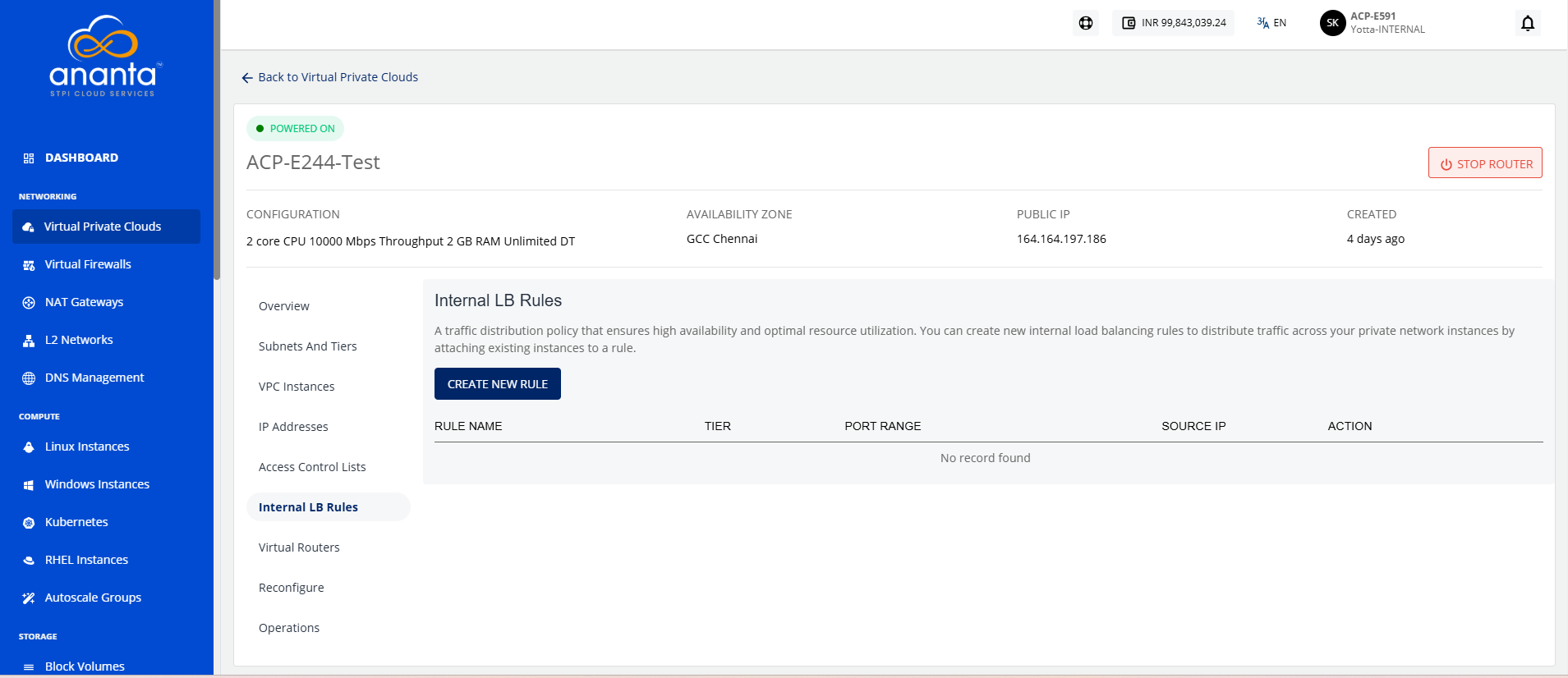
- Click the VPC name and navigate to the Internal LB Rules tab. The following screen appears:
- Click the Create New Rule button. The following screen appears:
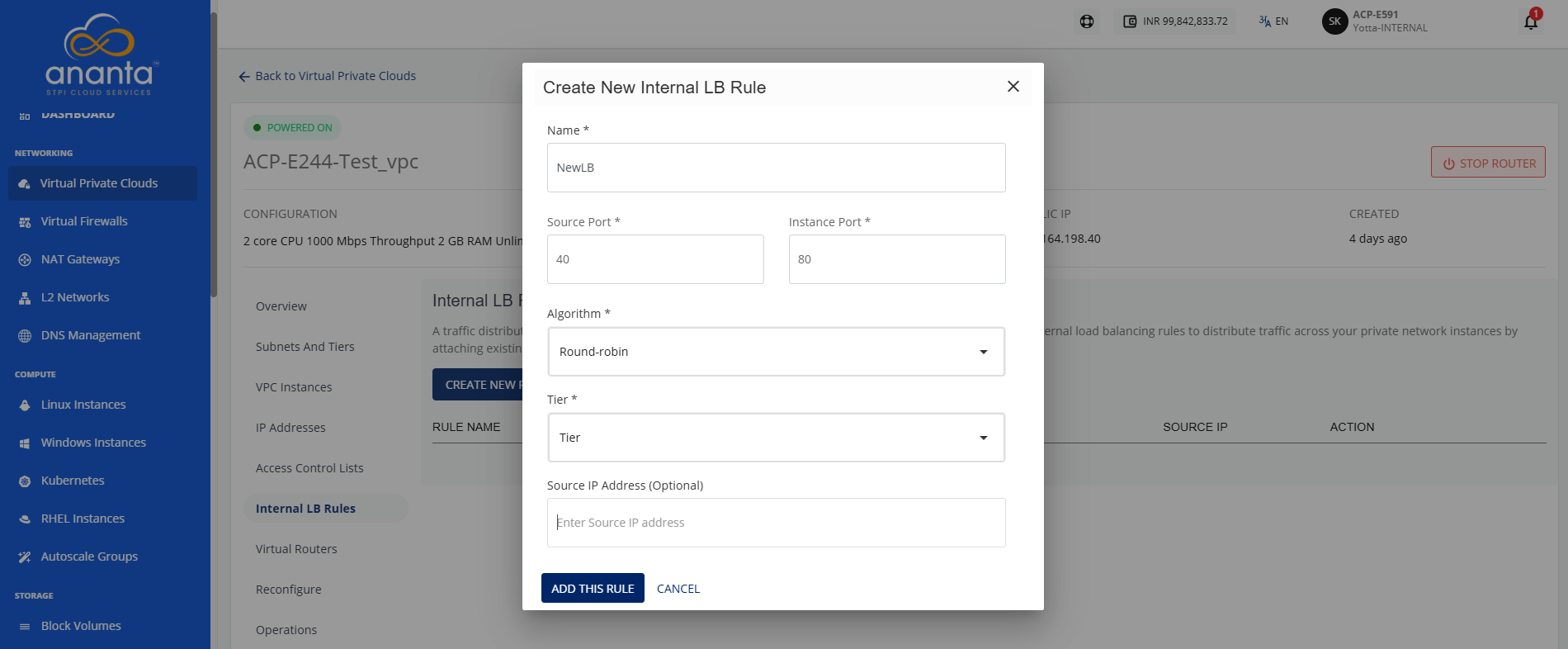
- Provide the following details:
- Name: Enter a unique name to identify the load balancer rule.
- Source and Instance Port: Specify the source port and the destination instance port for traffic forwarding.
- Algorithm: Select the load balancing algorithm used to distribute incoming traffic across instances.
- Tier: Select the tier you want to associate with this LB rule.
- Source IP Address (optional): Specify a source IP address to restrict traffic to a particular IP.
- Click the Add This Rule button.
Adding an Instance
To add an instance, follow these steps:
- Navigate to Networking > Virtual Private Clouds. The following screen appears:
- Click the VPC name and navigate to the Internal LB Rules tab. The following screen appears:
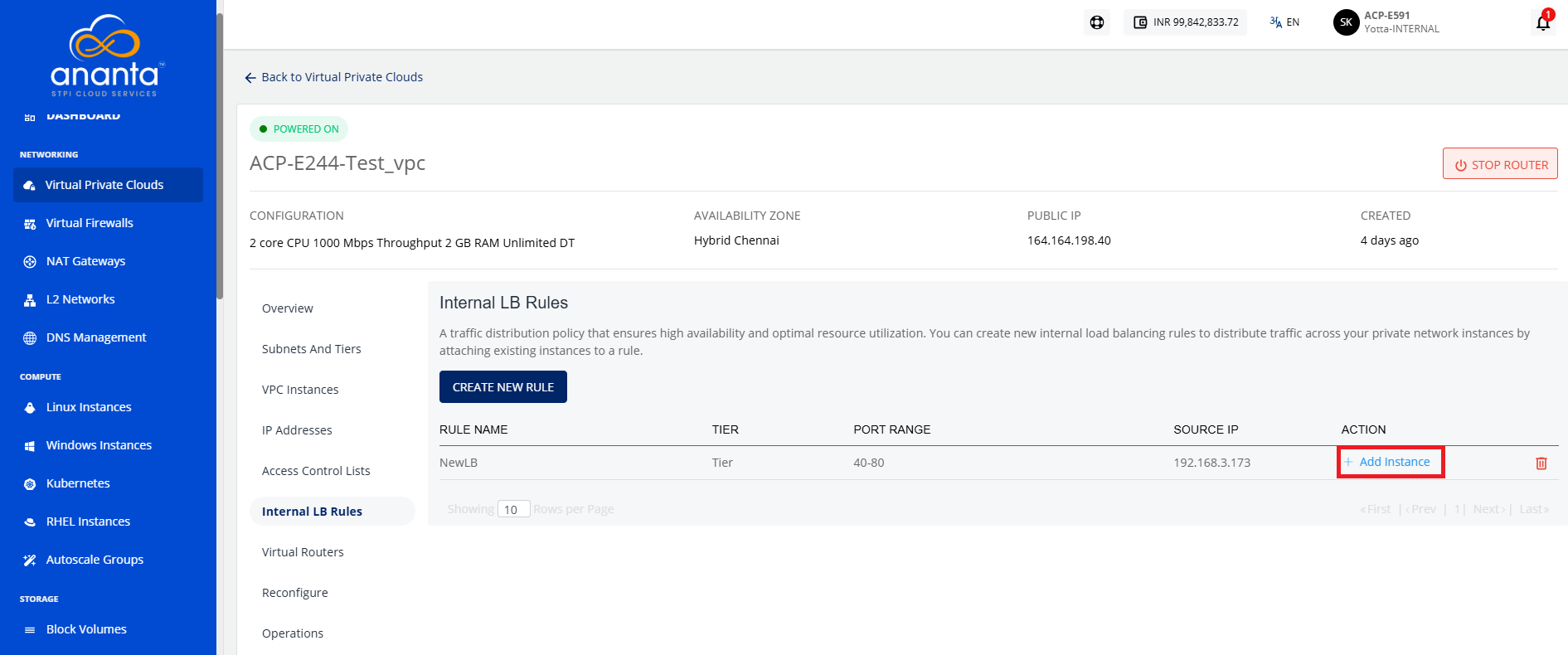
- Click the Add Instance icon (highlighted in red). The following screen appears:
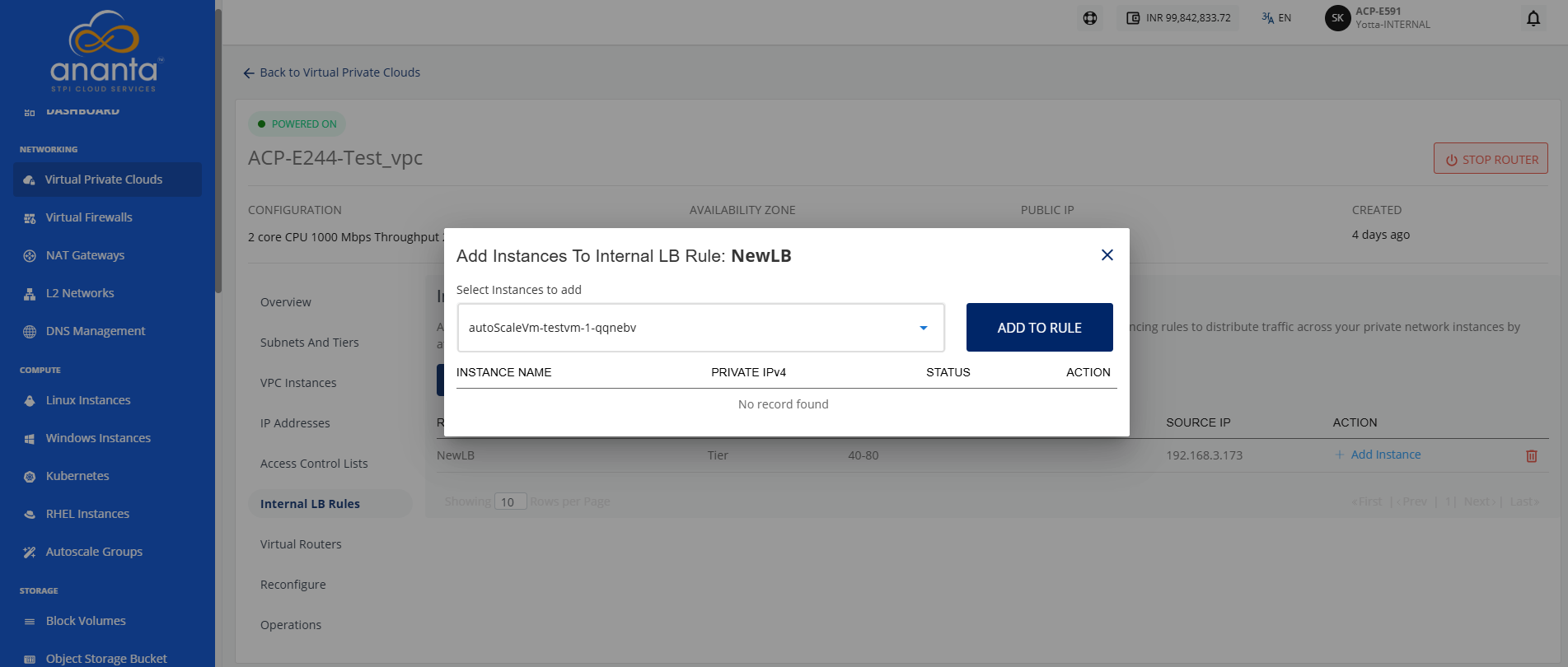
- Select the instance to add in Internal LB Rule.
- Click the Add to Rule button.
Deleting an Internal LB Rule
To delete an instance, follow these steps:
- Navigate to Networking > Virtual Private Clouds. The following screen appears:
- Click the VPC name and navigate to the Internal LB Rules tab. The following screen appears:
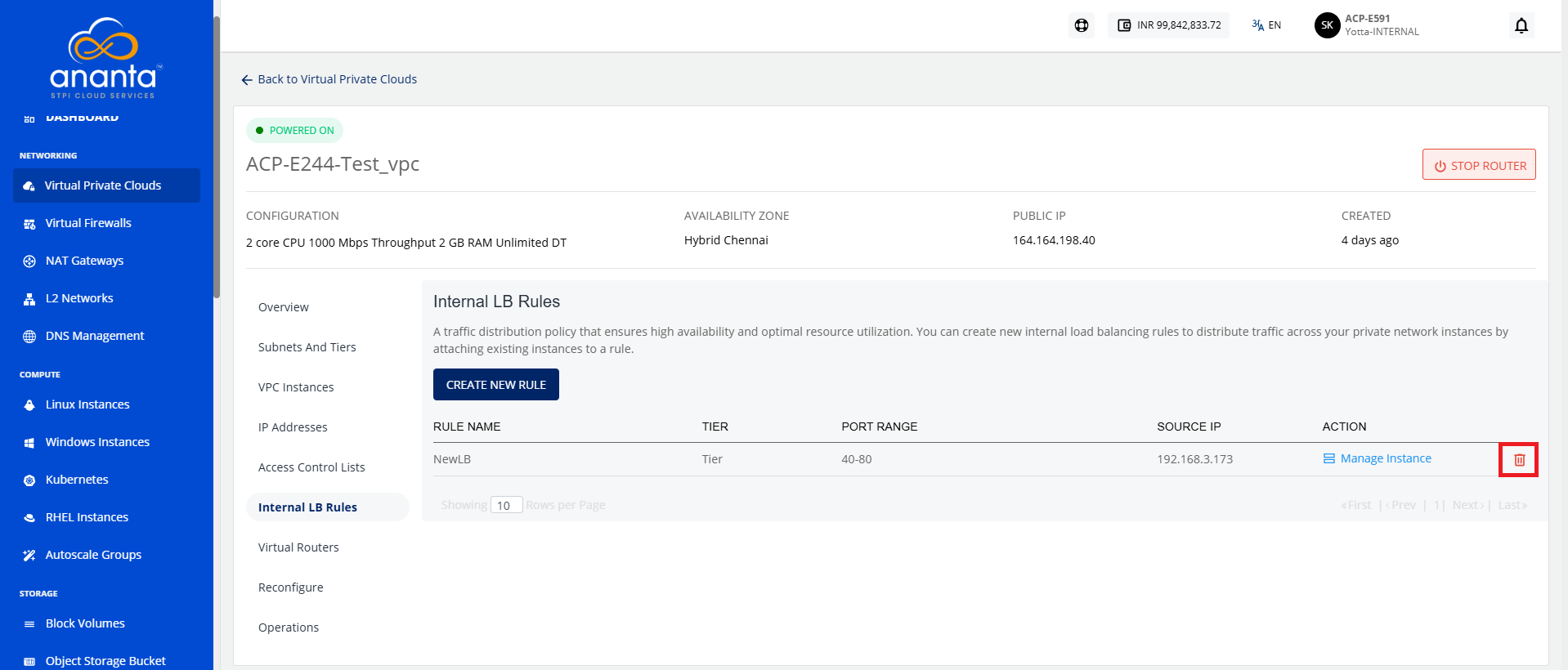
- Click the Delete icon (highlighted in red). The following screen appears:
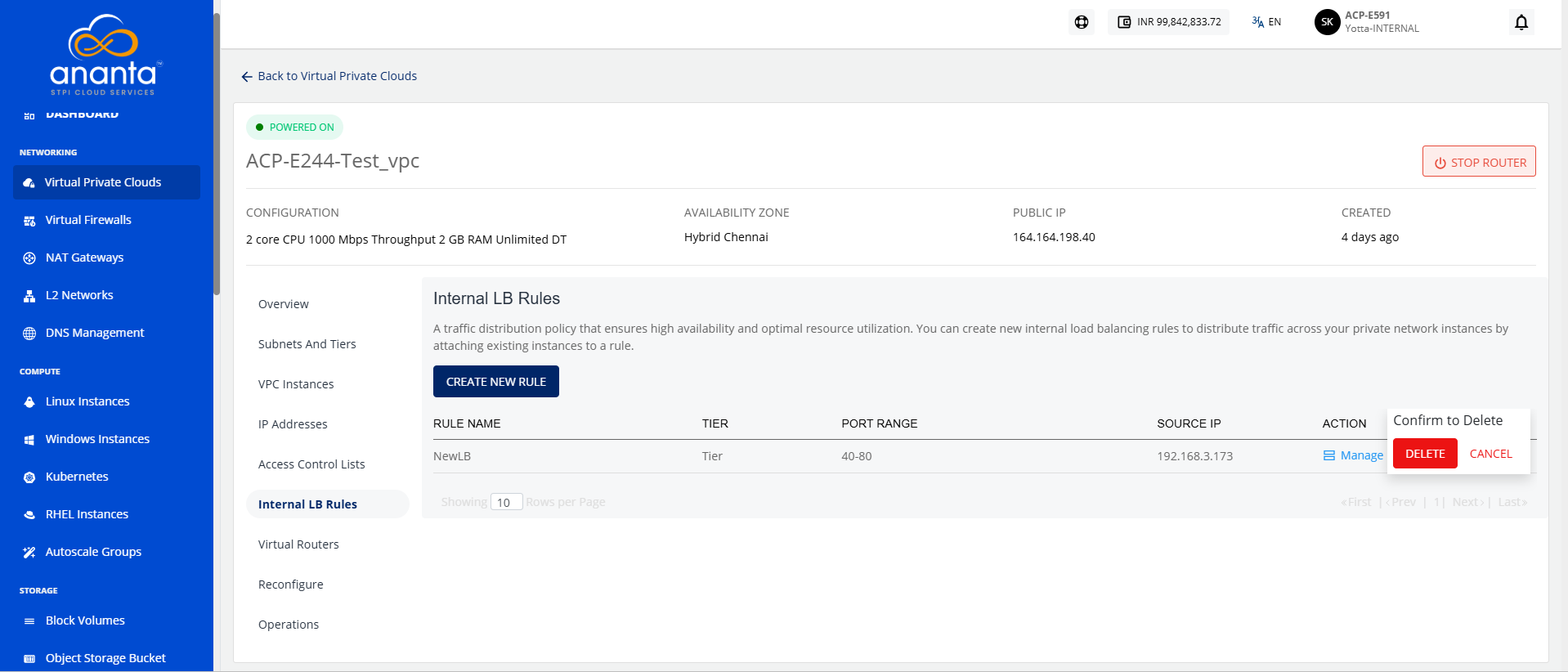
- Click the Delete button.